
Use Cases & Leads
Organize outbound workflows, assign agents, import leads, and control call execution.
Use Cases are the operating container for outbound calling. Each use case brings together an agent, a lead list, calling settings, and the resulting conversations.
Build a use case
- Open Use Cases and select Create New Usecase.
- Complete the Config tab to define the workflow, agent, voice, prompt, and calling behavior.
- Configure transfer recipients when callers should be able to request a human agent.
- Save the use case, then open the Leads tab.
- Create a lead manually or use Import Leads to upload a file.
- Search and review the imported records before starting calls.
Configuration can include the business objective, prompt and conclusion guidance, outbound number, calling window, concurrency, retry behavior, knowledge selection, task behavior, and enabled integrations. The options shown depend on workspace features and the selected workflow type.
The use-case list supports search and shows the configured agent so operators can quickly find and reopen an existing workflow.
Lead records
Lead records hold the customer information available to a use case. Keep the phone number normalized and add concise context that helps the agent personalize the conversation. Integration-created leads should use the same field conventions as manually imported leads.
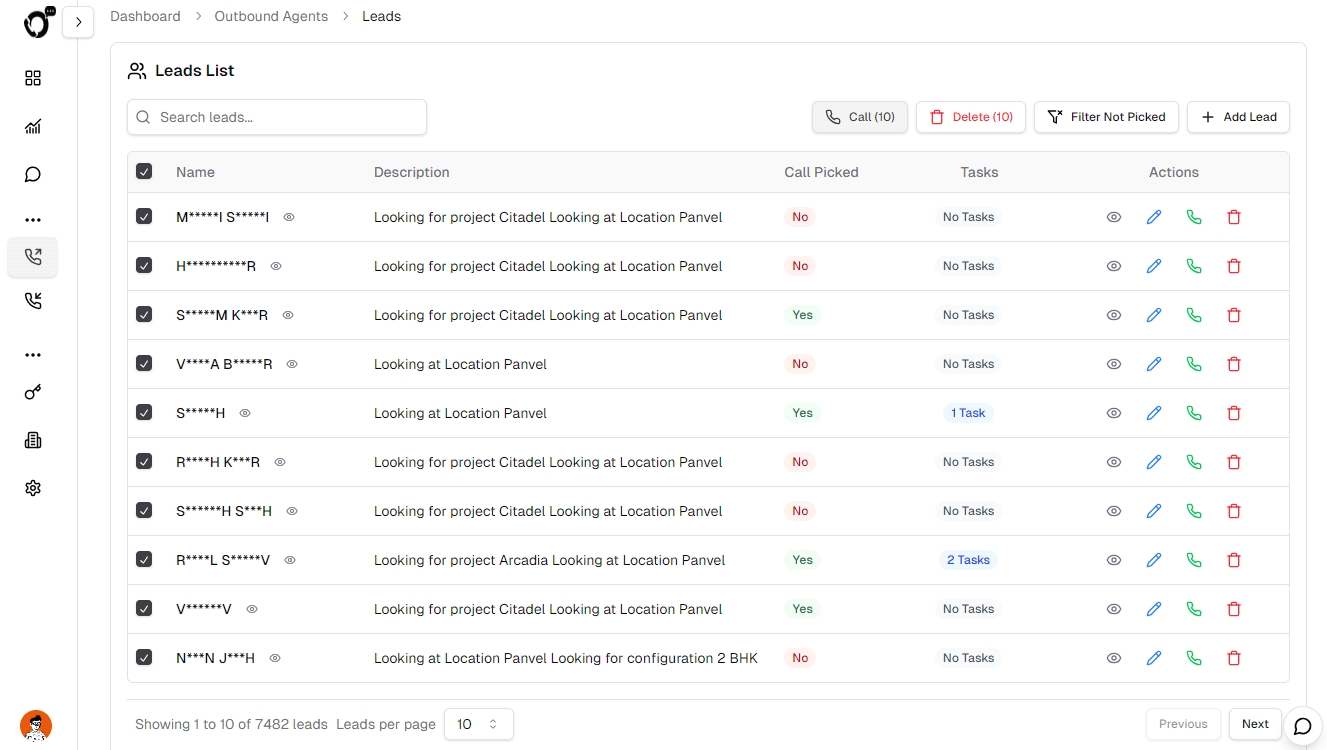
Inside a use case you can:
- Search leads by their stored details
- Add a single lead from the dashboard
- Import a lead file in bulk
- Review whether a call was picked up
- Inspect lead tasks and activity
- Open or edit an individual lead
Prepare lead data
At minimum, a callable lead needs a valid phone number. Name, email, and description provide useful context when the agent needs to personalize the conversation or a downstream integration needs to match the record. Use consistent international phone formatting and avoid putting secrets or unrelated customer data into the description.
Bulk imports and connected lead sources should be tested with a small file first. Confirm the column mapping, use case assignment, deduplication behavior, and the exact records created before importing the full list.
Calling controls
- Calling window: limits execution to the configured hours.
- Concurrency: controls how many calls the workflow can place at once, within workspace limits.
- Attempts and retry delay: determine how unreachable leads are retried.
- Human transfer: routes an eligible conversation to configured recipients when enabled.
- Tasks and integrations: determine follow-up actions such as messaging, scheduling, or CRM updates.
Pause the use case before making a material change to prompts, agent assignment, scheduling, or integrations. Existing and in-flight work may otherwise span two configurations.
Operating safely
- Test changes with a small lead segment.
- Respect local calling hours and consent requirements.
- Pause a use case before making large instruction or data changes.
- Use conversation outcomes to separate unreachable leads from workflow problems.
Verify before launch
Use test contacts you control. Confirm the caller identity, opening message, knowledge answers, opt-out behavior, scheduling or transfer path, and the record created in Conversations. If an integration is enabled, verify its downstream result separately.
Open Use Cases to create or manage an outbound workflow.
How is this guide?